DIY GuideMedium Difficulty

iPhone Battery Replacement Guide

Restore your iPhone's battery life and save $40-60 compared to professional repair.

Time:30-60 minutes
Difficulty:ā­ā­ā˜†ā˜†ā˜† (2/5)
Cost:$15-45
Savings:$40-60
āš ļø

Before You Start

This repair will void your Apple warranty. Lithium batteries can catch fire if damaged. If you're uncomfortable with any step, please get professional help.

šŸ“± Compatible Models & Pricing

ModelDifficultyBattery CostTime
iPhone 15/15 Plusā­ā­ā­ā˜†ā˜†$25-4045-60 min
iPhone 15 Pro/Pro Maxā­ā­ā­ā˜†ā˜†$30-4545-60 min
iPhone 14 Seriesā­ā­ā­ā˜†ā˜†$20-3540-50 min
iPhone 13 Seriesā­ā­ā˜†ā˜†ā˜†$18-3035-45 min
iPhone 12 Seriesā­ā­ā˜†ā˜†ā˜†$15-2830-45 min
iPhone 11 Seriesā­ā­ā˜†ā˜†ā˜†$15-2530-40 min
iPhone X/XS/XRā­ā­ā˜†ā˜†ā˜†$12-2225-35 min
iPhone 8/8 Plusā­ā­ā˜†ā˜†ā˜†$10-1820-30 min
iPhone SE (2nd/3rd)ā­ā­ā˜†ā˜†ā˜†$12-2025-35 min

Step-by-Step Instructions

1

Preparation & Safety

ā±ļø 5 min
Before starting, complete these safety steps: • **Discharge battery below 25%** - Lithium batteries can catch fire if punctured while charged • **Power off your iPhone completely** - Hold power + volume, slide to power off • **Work on a clean, static-free surface** - Use an anti-static mat if available • **Have good lighting** - You'll be working with tiny components • **Take your time** - Rushing leads to mistakes **Important:** Back up your phone before starting. While this repair shouldn't affect data, it's always better to be safe.

āš ļø Warning: If your battery is swollen (screen lifting up), be extra careful. Do not puncture or bend the battery.

2

Remove the Bottom Screws

ā±ļø 2 min
Locate the two pentalobe screws on either side of the Lightning/USB-C port at the bottom of your iPhone. • Use the **Pentalobe P2 screwdriver** • Turn counter-clockwise to remove • These screws are very small - work over a white surface so you can find them if dropped • Place screws on magnetic mat or tape them down in order **Screw sizes vary by model:** - iPhone 8-11: 3.5mm screws - iPhone 12-15: 3.7mm screws

šŸ’” Tip: Apply firm downward pressure while turning to avoid stripping the screw heads.

3

Separate the Screen

ā±ļø 5-10 min
This is the trickiest part - go slowly. **Option A: Suction Cup Method** 1. Apply suction cup near the bottom of the screen, above the home button area 2. Pull up firmly while prying with a plastic tool at the edge 3. You'll hear a slight pop as the clips release **Option B: Heat Method (recommended for older phones)** 1. Apply heat around the edges for 1-2 minutes (hair dryer on low, or iOpener) 2. This softens the adhesive seal 3. Then use suction cup method **CRITICAL WARNINGS:** āš ļø DO NOT separate more than 90° - cables connect screen to body āš ļø iPhone X and later: Display cables are on the LEFT side āš ļø iPhone 8 and earlier: Display cables are on the RIGHT side

āš ļø Warning: Opening too far will tear the display cables and destroy your screen!

4

Disconnect the Battery

ā±ļø 3 min
Before touching anything else, you MUST disconnect the battery. 1. Locate the metal bracket covering the battery connector 2. Remove the screws holding this bracket (usually 2-3 Phillips screws) 3. Set bracket and screws aside (keep organized!) 4. Use plastic spudger to gently pry up the battery connector 5. Fold connector out of the way **Why this matters:** Working on a phone with battery connected risks short circuits that can fry components.

šŸ’” Tip: Take a photo before removing screws so you remember where each one goes.

5

Disconnect Display Cables (Optional)

ā±ļø 5 min
For easier access, you can fully remove the display: 1. Remove the bracket covering the display cables (2-4 screws) 2. Carefully disconnect each ribbon cable by prying up gently 3. Lift display away from phone body **Display cables to disconnect:** - Battery (already done) - Display data cable - Digitizer cable - Front camera/sensor cable (some models) **If you choose NOT to remove display:** - Prop it up at 90° against a stable object - Be very careful not to strain the cables

šŸ’” Tip: Place display face-down on a soft cloth to avoid scratching.

6

Remove the Old Battery

ā±ļø 5-15 min
iPhones use adhesive pull tabs to secure the battery. **Pull Tab Method:** 1. Locate the black pull tabs at the bottom edge of battery 2. Pull slowly and steadily at a low angle (almost parallel to battery) 3. If tab breaks, try from another tab 4. The adhesive should stretch and release **If pull tabs fail:** 1. Apply heat to the back of the phone (warm, not hot) 2. Use plastic card to gently pry battery up 3. Start from one corner and work around 4. NEVER use metal tools - risk of puncture **DANGER:** If you puncture the battery, it may catch fire. If you see smoke or smell chemicals, move away immediately.

āš ļø Warning: Never bend or puncture the battery. If it starts to bulge or smoke, move away and do not attempt to extinguish with water.

7

Install the New Battery

ā±ļø 5 min
Now for the satisfying part - installing your new battery. 1. **Apply new adhesive strips** to the battery well (if not pre-applied to battery) 2. **Align the battery** - connector should line up with socket 3. **Press battery firmly** into place 4. **Connect battery cable** - press down until it clicks 5. **Replace battery bracket** and screws **Check your work:** - Battery should sit flat, not bulging - Connector should be fully seated - No cables pinched underneath

šŸ’” Tip: New batteries may ship at 50% charge. This is normal and safe.

8

Reassemble Your iPhone

ā±ļø 5 min
Reverse the disassembly process: 1. **Reconnect display cables** (if removed) - Each cable should click into place - Replace the bracket and screws 2. **Connect battery** and replace bracket 3. **Close the display** - Start at the top edge - Work around the edges, pressing gently - You should hear/feel clips engaging 4. **Replace bottom screws** - Pentalobe screws go back in the same holes **Before fully closing:** - Turn on phone to verify display works - Check touch response - If something doesn't work, reopen and check connections

šŸ’” Tip: If display won't close flush, a cable may be pinched. Reopen and check.

9

Calibrate Your New Battery

ā±ļø Ongoing
For best battery life and accurate readings: **First Charge Cycle:** 1. Charge to 100% without interruption 2. Use phone normally until it dies (0%) 3. Charge back to 100% **Expected Behavior:** - Battery health may show "Unknown" for 1-2 weeks - iOS needs time to calibrate the new battery - This is normal and will resolve itself **If you see "Important Battery Message":** - Non-Apple batteries will show this warning - Functionality is not affected - It's just Apple's way of noting non-genuine parts **Your repair is complete! šŸŽ‰**

šŸ”§ Troubleshooting

Phone won't turn on after repair

Check that battery connector is fully seated. Reconnect and try again.

Display doesn't work

Display cables may be loose or damaged. Reopen and check all connections.

Battery health shows "Service"

Non-Apple batteries always show this. It doesn't affect functionality.

Touch screen not responding in some areas

Digitizer cable may be loose. Reseat the connection.

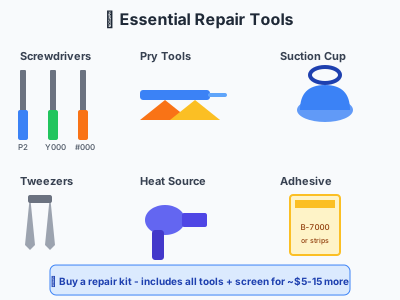
šŸ› ļø Tools & Parts Needed

Essential repair tools
  • ā—
    Pentalobe P2 Screwdriver

    For bottom screws

  • ā—
    Y000 Tri-point Screwdriver

    For battery connector (some models)

  • ā—
    Phillips #000 Screwdriver

    For internal brackets

  • ā—
    Plastic Pry Tools / Spudger

    For disconnecting cables

  • ā—
    Suction Cup

    For lifting screen

  • ā—
    Tweezers

    For handling small screws

  • ā—
    Replacement Battery

    Match your exact model

  • ā—
    Adhesive Strips

    Usually included with battery

  • ā—‹
    Heat Source (hair dryer/heat pad)

    Helps loosen adhesive

  • ā—‹
    Magnetic Mat

    Keeps screws organized

šŸ’” Get everything you need

Complete repair kits include battery + all tools

Shop Battery Kits

Prefer professional repair?

Get Repair Quotes