Samsung Galaxy Screen Replacement
Replace your cracked Samsung Galaxy screen and save $100-200. This guide covers Galaxy S24, S23, S22, S21, and A-series models with detailed instructions.
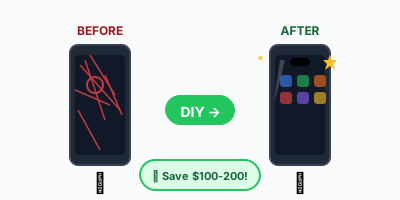
⚠️ Difficulty Warning: Samsung screen repair is harder than iPhone due to the back-opening design and fragile AMOLED screens. If you're not confident, consider professional repair.
📱 Samsung Model Guide
| Model | Difficulty | DIY Cost | Samsung Price | Notes |
|---|---|---|---|---|
| Galaxy S24 Ultra | ●●●●● | $200-280 | $499 | Curved AMOLED, S-Pen digitizer |
| Galaxy S24 / S24+ | ●●●●● | $150-220 | $349-399 | Flat display, easier than curved |
| Galaxy S23 Ultra | ●●●●● | $180-250 | $499 | Curved edges require extra care |
| Galaxy S23 / S23+ | ●●●●● | $120-180 | $299-349 | Similar to S24 process |
| Galaxy S22 Ultra | ●●●●● | $150-200 | $449 | Screen + frame recommended |
| Galaxy S22 / S22+ | ●●●●● | $100-150 | $249-299 | Good DIY option |
| Galaxy S21 Series | ●●●●● | $80-140 | $229-349 | Well documented, good parts availability |
| Galaxy A54 / A53 | ●●●●● | $50-80 | $179 | Easiest Samsung repair |
| Galaxy Z Fold/Flip | ●●●●● | N/A | $499+ | ⚠️ Pro repair only - folding mechanism |
📋 Samsung vs iPhone Repair
Samsung Opens from Back
You remove the back glass first, then midframe, then access screen from inside.
More Adhesive
Both front and back are glued. Requires more heating and patience.
Fragile AMOLED
Samsung screens are thinner and crack more easily during removal.
Recommendation
Buy screen WITH frame assembly. Costs more but dramatically easier.
🧰 Tools & Materials
For back cover and internal screws
For separating back cover
For lifting back glass
For handling ribbon cables
Hair dryer or heat pad - essential for Samsung
With frame recommended
For cleaning adhesive residue
Pre-cut or liquid
Guitar picks work great
Highly recommended
Step-by-Step Instructions
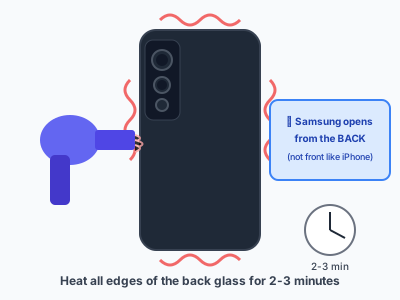
Samsung phones open from the back, not the front like iPhones.
**Power off completely** - hold Power + Volume Down for 10 seconds.
**Apply heat to the back glass** for 2-3 minutes. Samsung uses strong adhesive - the back needs to be quite warm (but not too hot to touch).
Focus on the edges where the adhesive is located.
⚠️ Warning: Samsung backs are glass and can crack! Apply even heat and don't use excessive force.

Place suction cup on the heated back glass, near a corner.
Pull up firmly while inserting a thin plastic pick into the gap. Once you have a small opening, slide the pick along the edge to cut through the adhesive.
**Work your way around all edges**, reheating as needed. Don't rush - the adhesive will re-bond if it cools.
Leave picks in place to prevent re-sealing.
💡 Tip: Old gift cards or guitar picks work great for this.

Once all edges are separated, lift the back glass away carefully.
**Check for a fingerprint sensor cable** (on older models) - this connects to the back cover. Disconnect it before fully removing the back.
On newer models (S21+), the fingerprint is under the screen, so no cable to worry about.
Set the back glass aside safely - you'll reuse it.

You'll see a plastic midframe covering the internals. It's held by 15-20 small Phillips screws.
**Remove ALL screws** and place them on your magnetic mat. Note their positions - Samsung often uses different length screws.
Some models have a few screws hidden under stickers or tape - look carefully!
After screws are out, use a plastic tool to pop the clips around the edge of the midframe, then lift it off.
💡 Tip: Take a photo of screw positions before removal.

**Always disconnect the battery first** before touching any other cables.
Locate the battery connector (usually a wide ribbon cable with a press-fit connector near the center of the battery).
Use a plastic spudger to gently pry up the connector from the board. It should pop off cleanly.
This prevents any short circuits while you work.
⚠️ Warning: Never skip this step! Working with battery connected risks damaging components.

Locate and disconnect all ribbon cables connecting the screen to the motherboard:
- **Main display cable** (large connector)
- **Digitizer/touch cable** (may be combined with display)
- **Front sensors cable** (proximity, light sensor)
Also disconnect:
- Front camera cable
- Earpiece speaker cable (if attached to screen assembly)
Use a plastic spudger, gently pry from the edge of each connector.

This is the hardest part for Samsung repairs.
**If your replacement screen comes WITH a new frame:** Skip this step - you'll transfer the motherboard and components to the new assembly instead.
**If screen-only replacement:**
1. Heat the front screen edges for 2-3 minutes
2. Use suction cup + pry tools to separate screen from frame
3. Go extremely slowly - AMOLED screens are very fragile
4. Curved edge screens are especially difficult
**Pro tip:** Replacement screens with frame pre-attached cost ~$20-40 more but save hours of frustration and risk.
⚠️ Warning: AMOLED screens crack VERY easily. If doing screen-only, expect a 20-30% failure rate.

If your new screen came with a frame, you need to transfer:
- **Motherboard** (main logic board)
- **Battery** (unless also replacing)
- **Charging port daughter board**
- **Front camera**
- **Earpiece speaker**
- **Any buttons/flex cables**
Take your time - this is basically rebuilding the phone in a new shell.
Keep screws organized by which component they came from.
💡 Tip: Watch a teardown video for your specific model to see exact component locations.

Before fully reassembling, connect all cables and **test the new screen**:
1. Connect battery
2. Connect display cable
3. Connect front sensors
4. Power on (don't screw anything down yet)
**Verify:**
- Display turns on and shows image
- Touch works across entire screen
- Colors look correct (no dead pixels, lines)
- Front camera works
- Proximity sensor works (screen off during calls)
If issues, check connections before panicking.

Everything works? Great! Time to button it up:
1. **Replace midframe** - snap clips and install all screws
2. **Clean back glass** - remove old adhesive with isopropyl alcohol
3. **Apply new adhesive** - pre-cut strips or B7000 glue
4. **Press back glass** firmly - apply even pressure for 60 seconds
5. **Let cure** - ideally 24 hours before heavy use, or use rubber bands to maintain pressure
**Optional:** Place phone in warm location (not hot!) to help adhesive bond.
💡 Tip: Water resistance won't be as good as factory. Be careful around water after DIY repair.
Too complicated? No problem.
Samsung repairs are genuinely difficult. Get quotes from local pros who do this every day.
Find Samsung Repair Shops →